The tour · 11 of 11
Your garden is yours.
The garden lives on your side of the screen.
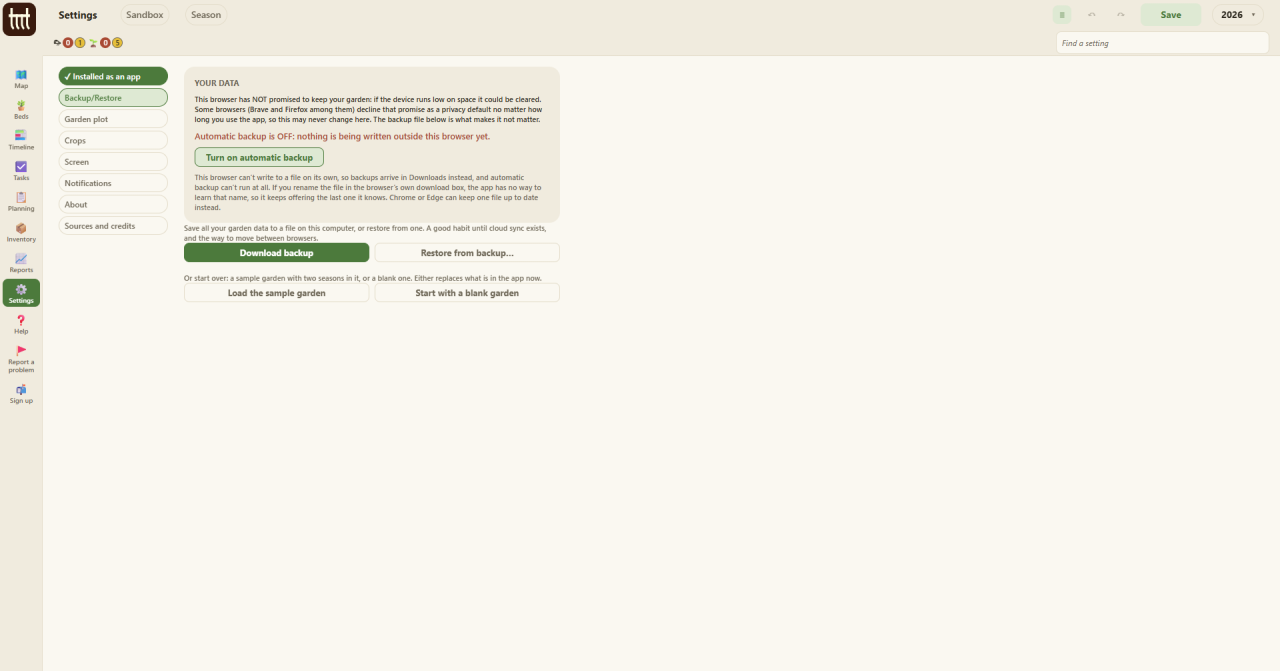
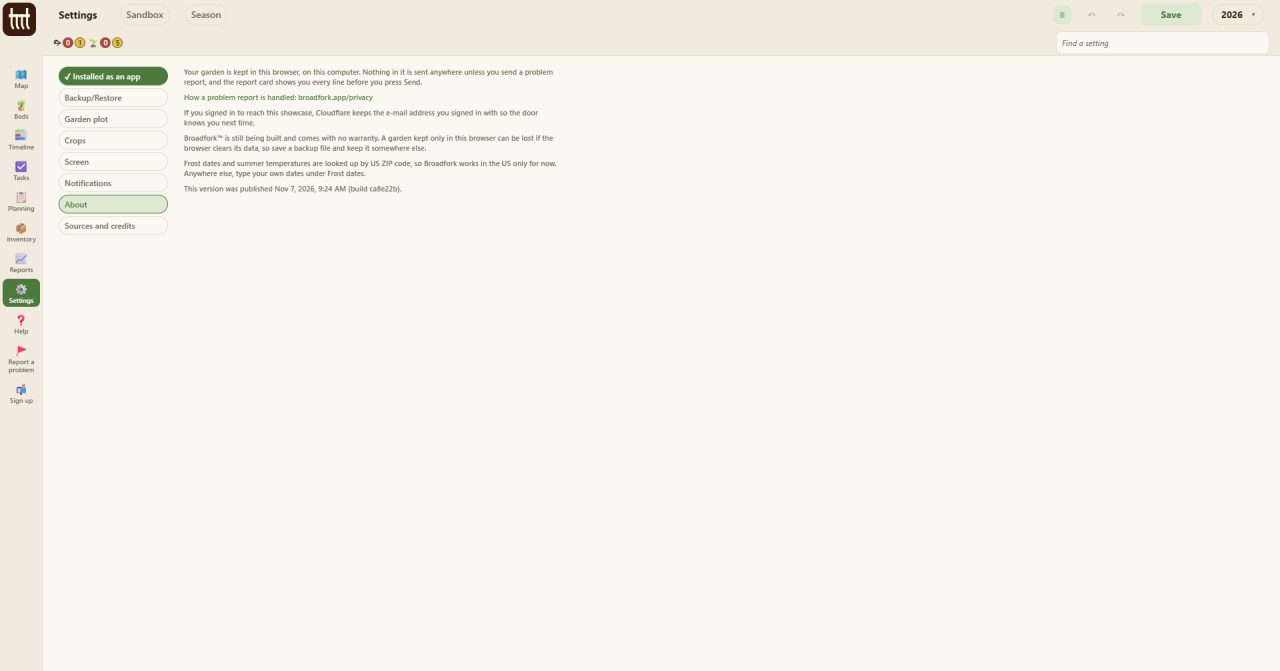
Broadfork runs in your browser, on your computer, and your garden is kept there. Nothing about it is sent anywhere unless you send it. There is no account to make today.
That cuts both ways: if the browser clears its data, the garden goes with it. So save a backup file and keep it where you keep things that matter. It restores on any computer. In Chrome or Edge the app can keep that file up to date on its own. In a browser that cannot, the file comes down to Downloads when you ask for it. The numbers it works from come from published research, and it lists its sources by name under Settings.
Start with one bed. Next spring it will already know something you would have forgotten.
The sample garden is open to click through, with no sign-in. It is built for a computer screen for now.
Try the sample gardenOr leave your email and you will hear the day it opens.